Load the game first, then make it fullscreen
On a Nisu game page, press Load game and wait until the game’s own title screen, menu or lobby is visible. Then use the Fullscreen button in the player toolbar. Entering fullscreen before the game has finished opening can leave you staring at a large loading screen with no useful sign that the controls are ready.
The order is simple: load, wait, click inside the game once, then enter fullscreen. That click gives keyboard and mouse input to the game instead of the surrounding page. Press Escape whenever you want to leave fullscreen. Some games also use Escape for an in-game pause menu, so the first press may open that menu and a second press may return the browser to its normal view.
When the arrow keys scroll the page, the game does not have focus
A browser cannot guess whether an arrow key is meant for the page or the game. If the page moves when you try to control a character, click once inside the visible game area and try again. Do not click the toolbar, the title above the player or the blank margin; click the actual scene where the character appears.
This is especially common after switching tabs, opening a menu or leaving fullscreen. The game may still be running while the page has reclaimed focus. A single click usually restores control. On a laptop, make sure the cursor is not resting over a browser gesture area or another floating control. If the game uses the mouse for aiming, click only when you are ready for the cursor to become part of the game.
Dreadhead Parkour needs clean keyboard focus, not many keys
Dreadhead Parkour uses A and D to run, W to jump and S to slide. The challenge comes from timing those actions around saws, spikes, bombs, narrow openings and long gaps. Fullscreen helps because the route and upcoming hazards occupy more of your vision, but only if the browser sends those four keys to the game.
Load a level before switching views, click near the character, then test a short left-right movement before committing to a jump. Coins raise the score and unlock skins, while a gold star rewards a more complete route through each level. If a key appears stuck after leaving fullscreen, release every movement key, click inside again and press the intended direction once. Restart only if that simpler reset fails.
Super Willie World 2 is a good fullscreen test for a keyboard setup
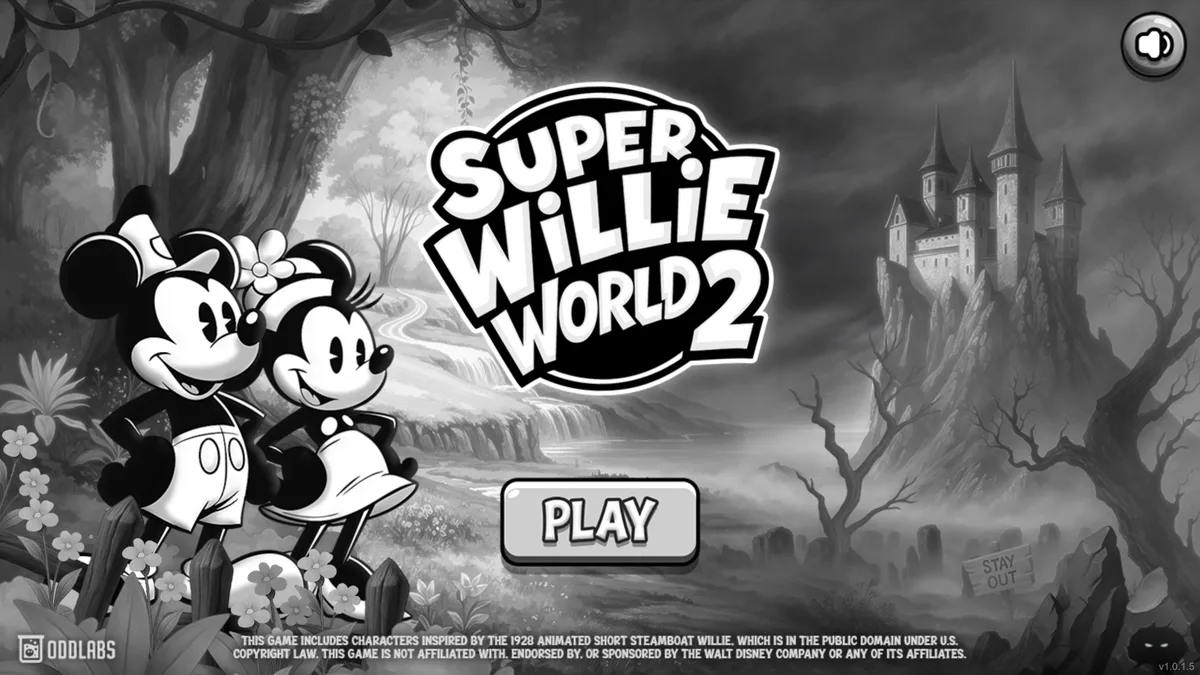
Super Willie World 2 uses the arrow keys for movement and jumping, plus Z to fire after you collect a power-up flower. The game contains 18 platforming levels and lets you choose Willie or Minnie. A shining star grants temporary invincibility. Because the control set is small, it is easy to tell whether the game has focus: a direction should move the character and Z should respond once the fireball ability is active.
If the arrows move the page, click the game. If Z triggers a browser shortcut, check whether a modifier key such as Command or Control is still held from something you did outside the game. Fullscreen cannot fix a missing power-up, so do not diagnose the fire button until you have collected the flower. Keep the distinction between a control that is unavailable in the current game state and a control that the browser is not delivering.
Scarlet Shift is about mouse space and a visible cursor boundary
Scarlet Shift is controlled with the mouse and keeps its action inside a compact survival arena. You are bleeding out, enemies arrive in waves and their blood drops keep the run alive. A larger view can make movement and pickups easier to read, but it also increases the physical distance your hand may travel if your pointer sensitivity is low.
Before the first serious wave, make one slow pass around the arena and confirm that the game follows the full movement you expect. If the cursor seems to hit an edge or escape onto another monitor, click inside again and keep the browser window on one display. A trackpad works, but repeated fast movement can become uncomfortable. Fullscreen improves visibility; it does not turn a cramped input surface into a mouse pad.
Veck.io may take ownership of the pointer
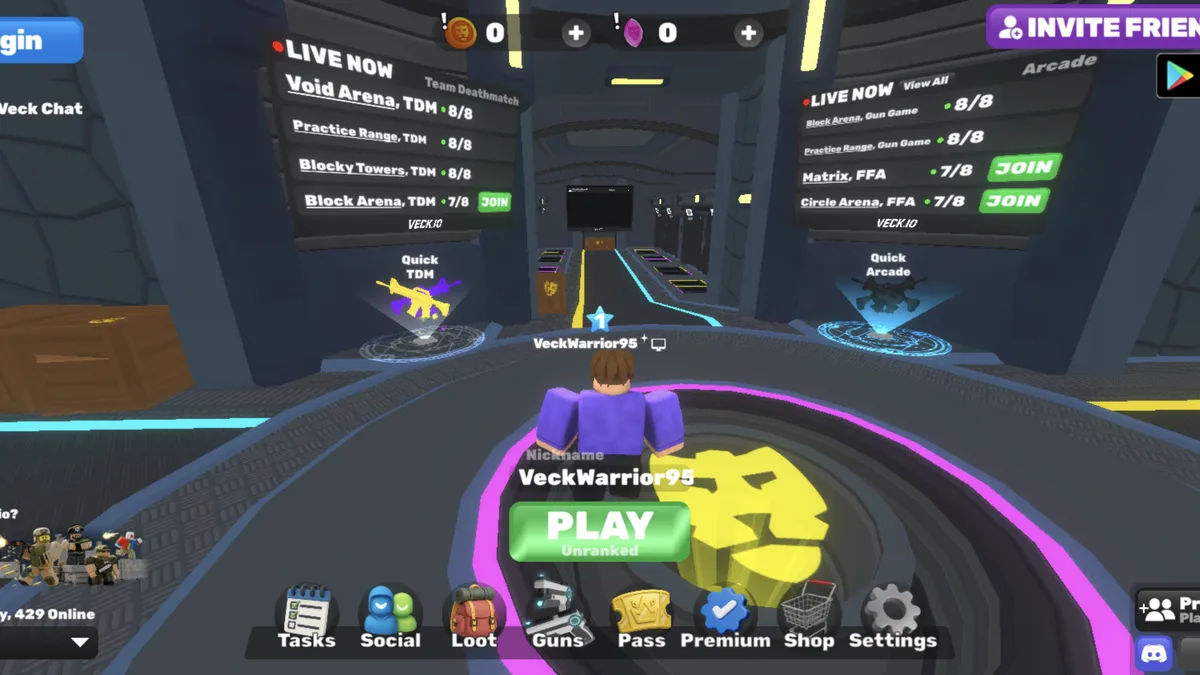
Veck.io is a live first-person shooter. WASD moves, the mouse aims, left click fires, right click aims, Space jumps and R reloads. Shift handles faster movement, Tab opens the scoreboard and Enter opens chat. Once a match uses the mouse for camera control, the browser may hide or hold the pointer so that turning does not stop at the edge of the screen.
That behavior is expected in an FPS. Press Escape when you need the cursor back for the Nisu toolbar. If Escape also opens a Veck.io menu, close the menu or press it again before trying the browser controls. Choose the server region and playlist in the lobby before entering fullscreen if you prefer making menu selections with a normal cursor. Remember that live chat can contain messages from other players and is not written or controlled by Nisu.
Use the game’s own picture settings before blaming fullscreen
A game can look soft in fullscreen when its internal resolution is lower than the monitor, and a very large canvas can run more slowly on a modest device. First check the game’s settings for resolution, quality or scaling. Lowering visual quality can make movement smoother without forcing you back into a small player.
Also give the browser a moment after the view changes. The canvas may briefly resize while the game redraws. If the image remains stretched, leave fullscreen, wait for the normal player to settle and enter again. Avoid repeatedly toggling the button in quick succession. The change is easier to judge when the game is standing in a quiet menu or lobby rather than loading a level at the same time.
Sound, tabs and system shortcuts can steal the session
Check volume before fullscreen so a loud title sound or gunshot does not become the first test. Headphones help with an FPS, but they are optional for the platformers and puzzles. If the game is silent, click once inside it; browsers sometimes wait for a player action before allowing audio. Then check the game’s own volume setting and the tab’s mute state.
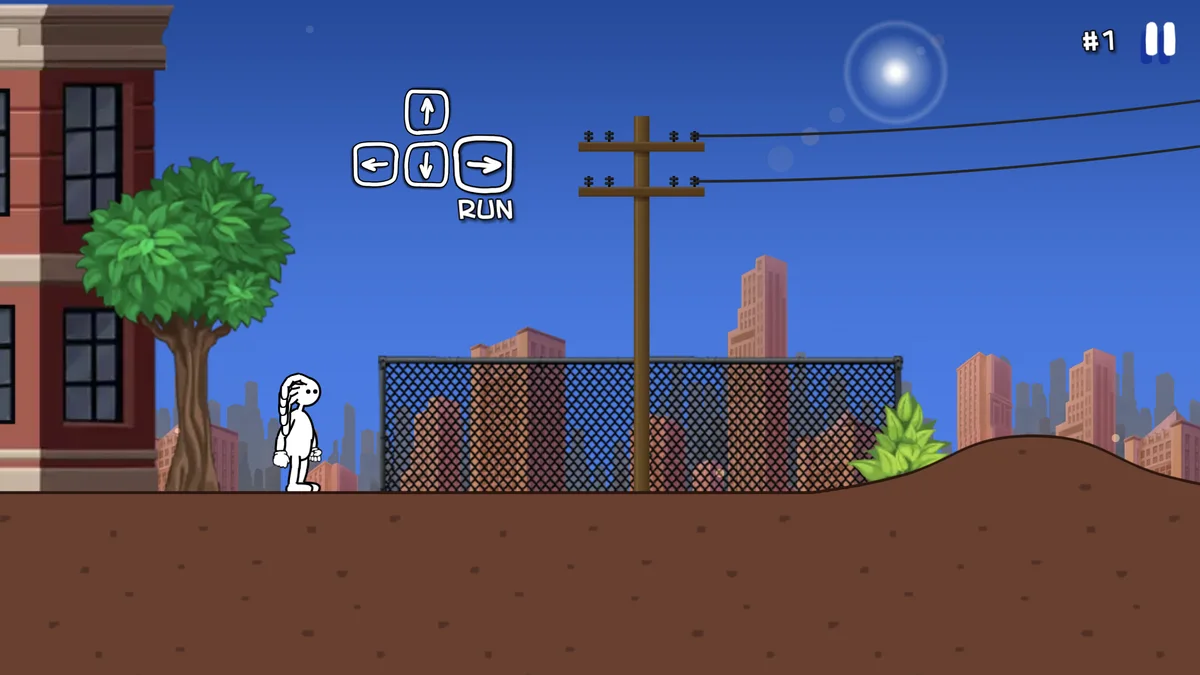
Keyboard shortcuts still belong to the operating system when they use reserved combinations. Command-Tab, Alt-Tab and browser shortcuts can pull you away even while the game has focus. When you return, click inside the game before moving. If you are sharing a keyboard for a local multiplayer game such as Poor Bunny!, test both players’ keys in the normal player first so fullscreen is not blamed for a keyboard that cannot register a particular combination.
Recover in a sensible order
If control stops responding, leave fullscreen with Escape, click inside the normal player and test one basic action. If the picture is frozen but the page still works, use Retry in the player. If the surrounding layout seems to interfere, Open direct puts the same game in its own tab. That is useful for diagnosing a stubborn focus problem and gives the canvas the whole page without changing the game itself.
Reload the entire page only after those smaller steps fail, because a reload can discard an unsaved run. The best fullscreen routine is deliberately boring: wait for a real menu, focus the canvas, enter fullscreen, play, and use Escape when you need the browser back. Once that habit becomes automatic, the large view feels like part of the game rather than a separate mode you have to fight.
 Play now